






Please Note: To complete a seat exchange on Admirals Account Manager, the new seats selected must be either the same value as your original seat or higher. Upgraded seats will automatically adjust to the price difference at checkout.
Step 1:
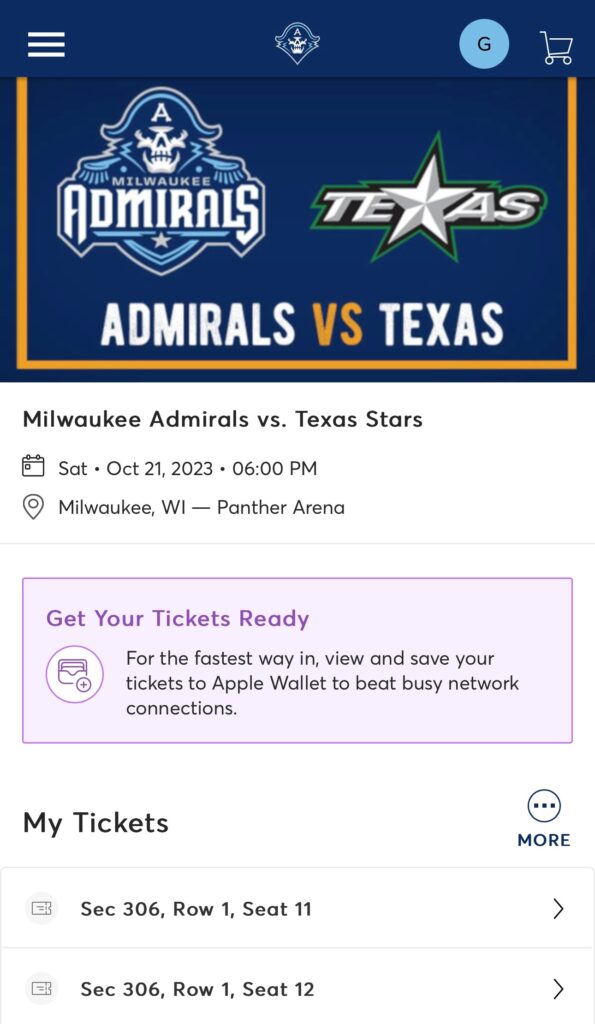
Select the game you want to exchange. Once on that page, select More (3 dots in a circle).
Step 2:
Select Exchange.

Step 3:
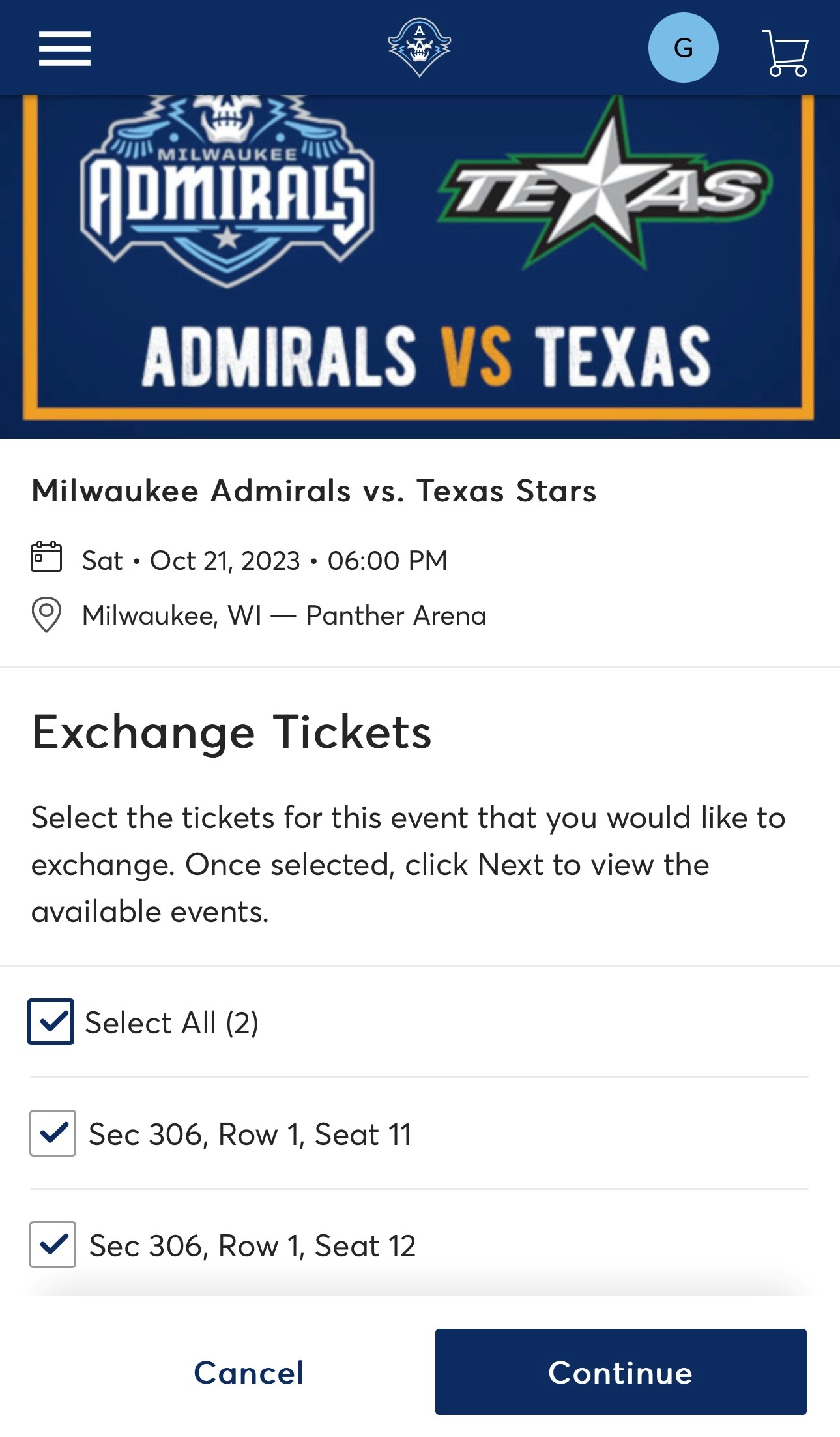
Select the seat(s) you want to exchange. Then hit Continue.
Step 4:
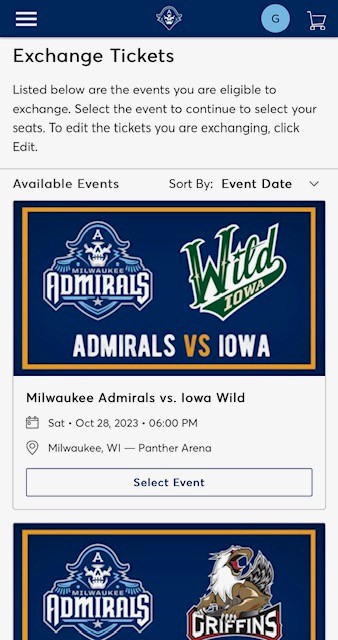
Find the game you like to attend. Hit Select Event.
Step 5:
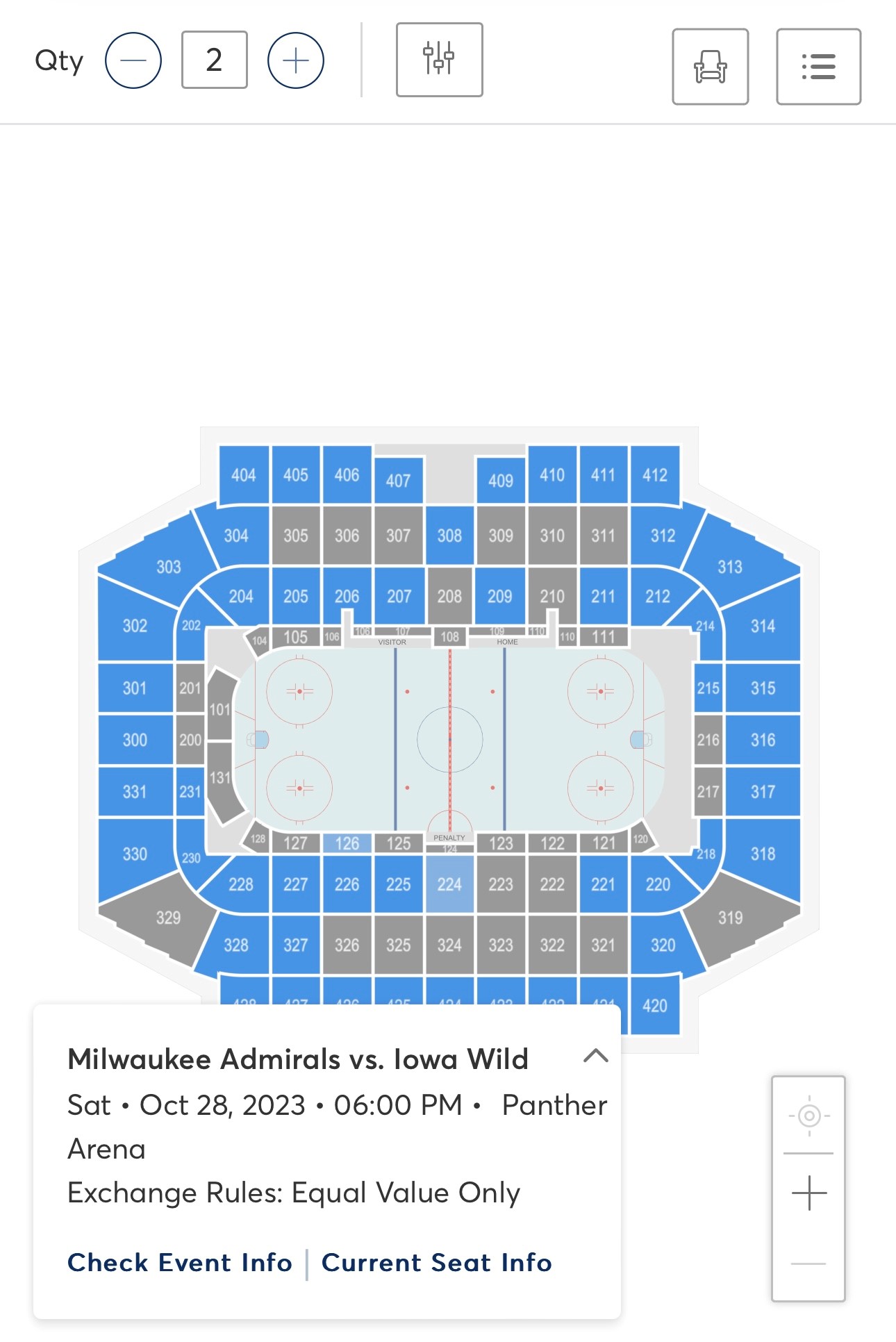
Pick a section on the seat map. The new seats selected must be the same value as your original seats or higher.
Step 6:
Select your new seats(s) and Add to Cart.

Step 7:
Select the shopping cart in the top right corner and then Continue.
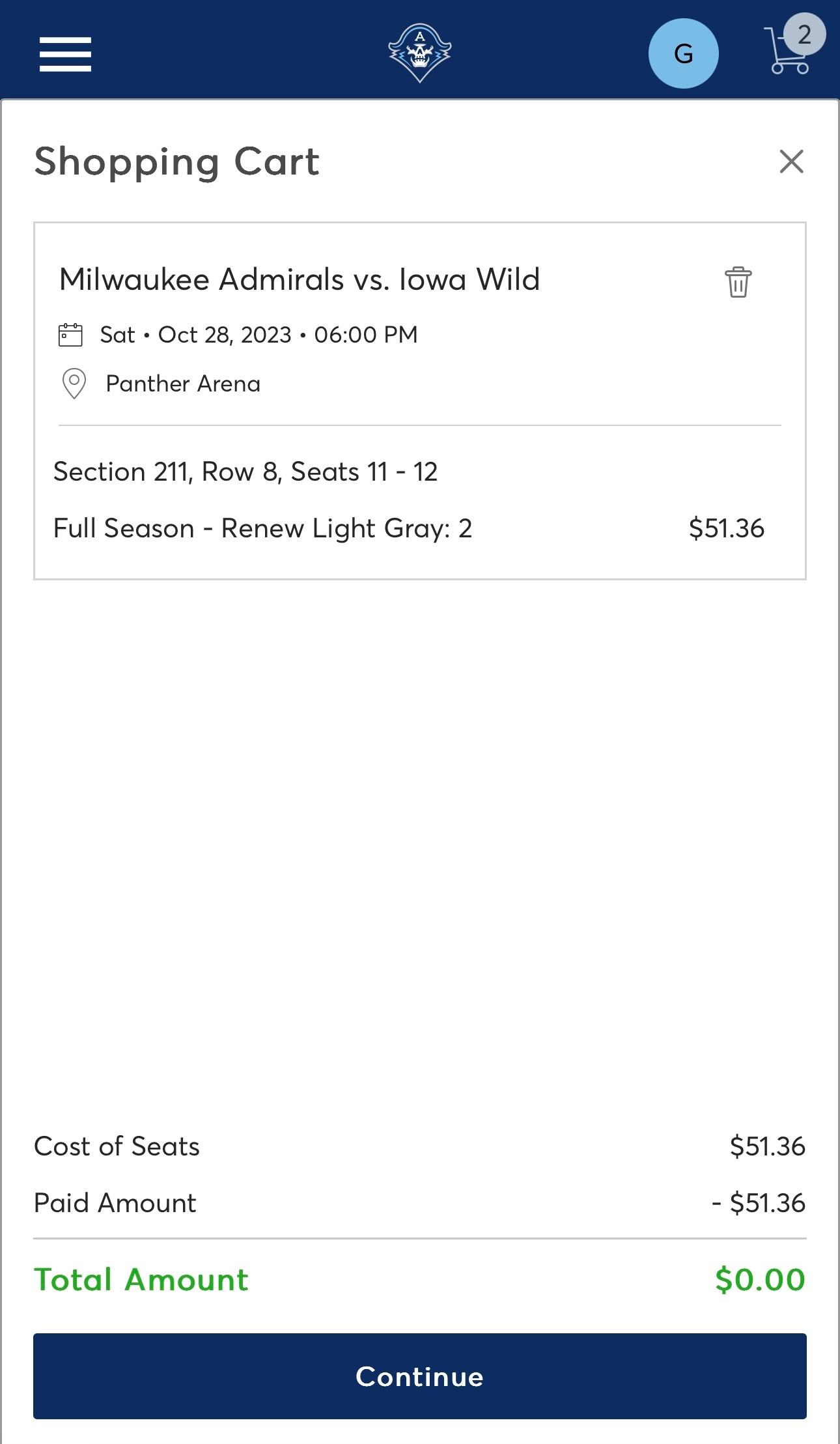
Step 8:
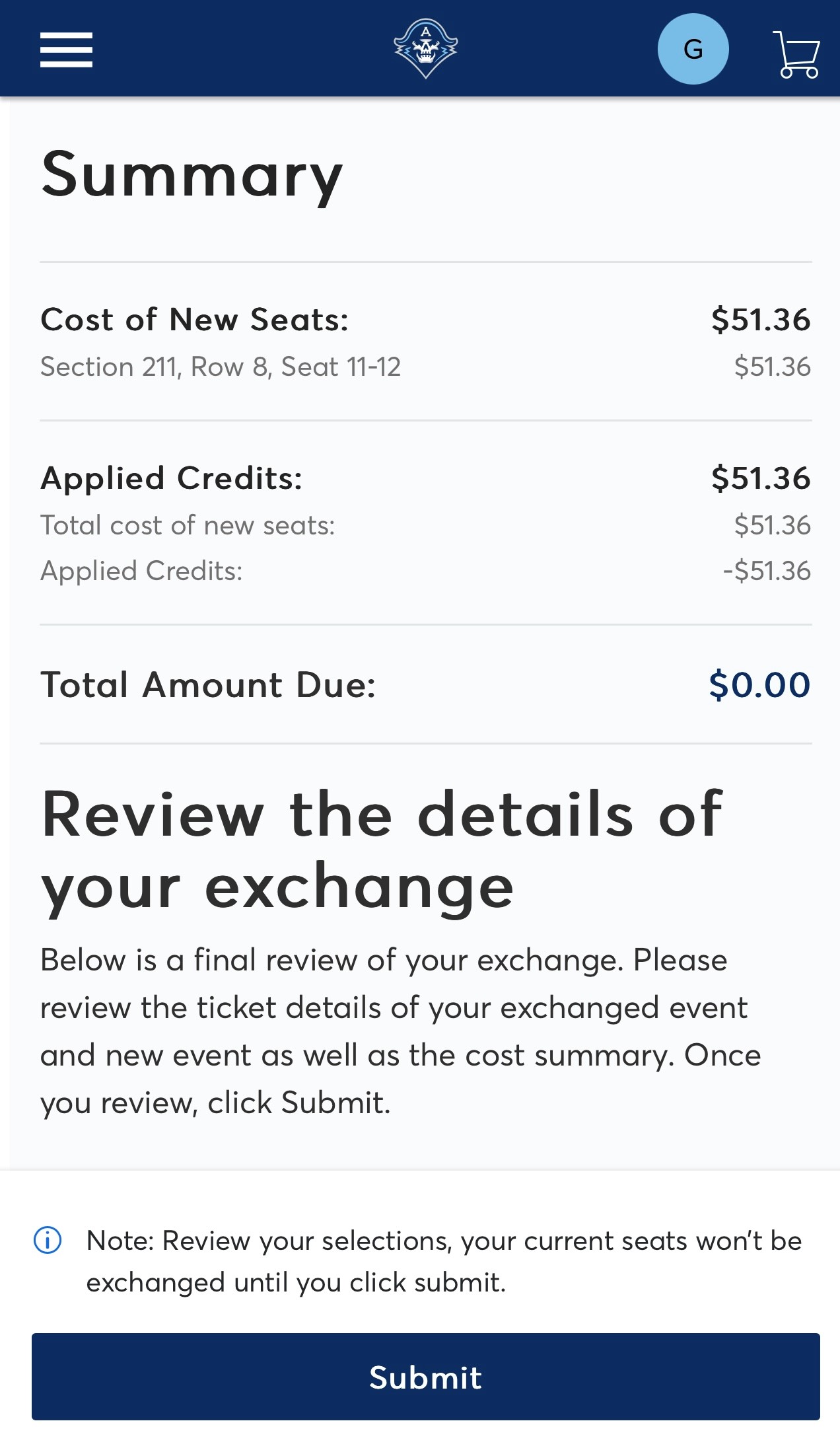
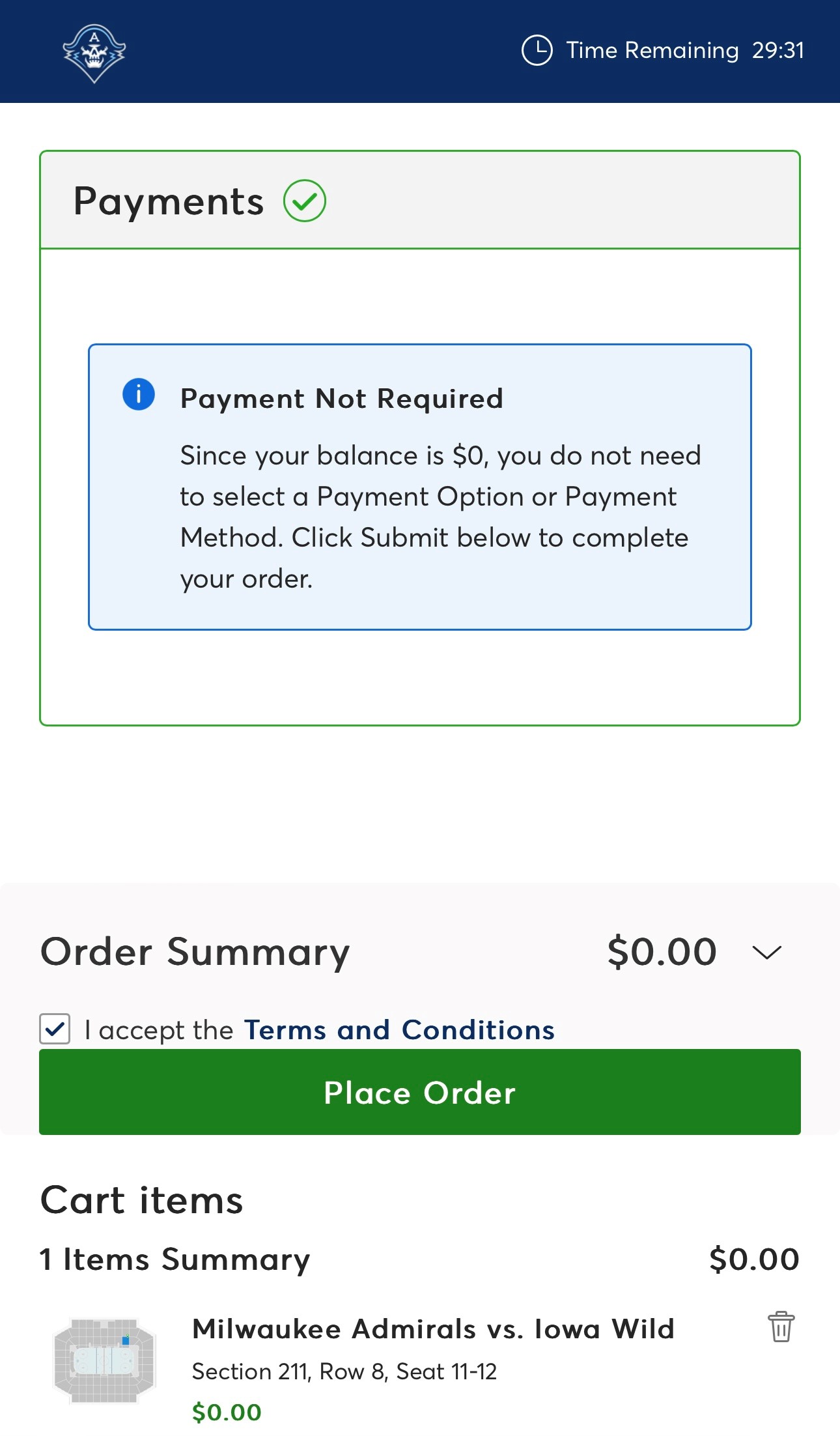
Review the summary of your exchange and then Submit.
Please Note: All even exchanges should show as $0.00 at this step. Additional charges may show if adding tickets or upgrading to a higher-value seat location.
Step 9:
Confirm payment method (if applicable) then hit Place Order.
Step 10:
Enjoy the new seats! You will receive a confirmation email detailing the exchange.
